Operation Guide
一、Get started quickly
Understanding Watches
With its vibrant design and 1.32-inch AMOLED touchscreen, this product delivers stunning colors and a fresh new experience.
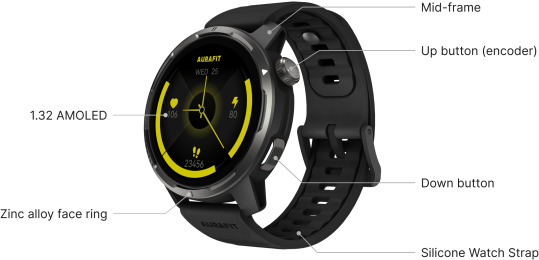
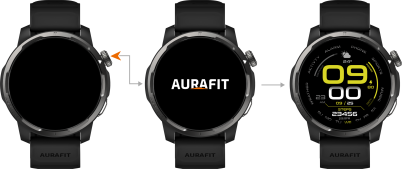
Power on/Power off/Restart
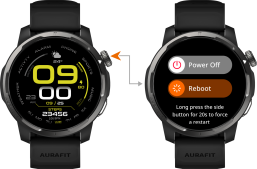
Power on – Press and hold the Upper Button for 3 seconds to power on.
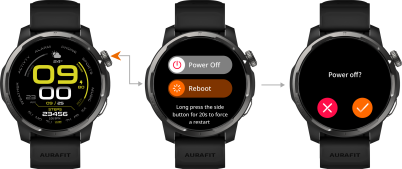
Power off----(1) Press and hold the Upper Button for 3 seconds, then select the power off button on the interface and click power off;(2) Settings-System-Power off;
Restart----(1) Press and hold the Upper Button for 3 seconds, then select the restart button on the interface and click restart;(2) Settings-System-Restart;
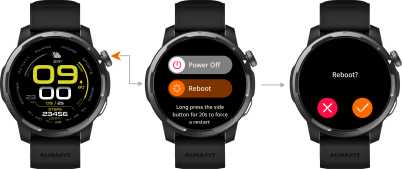
Force restart - Press and hold the Upper Button for more than 8 seconds to automatically force restart;
Pair with mobile phone
Upon first power-on, Bluetooth is in pairing mode by default;
一)、Android users
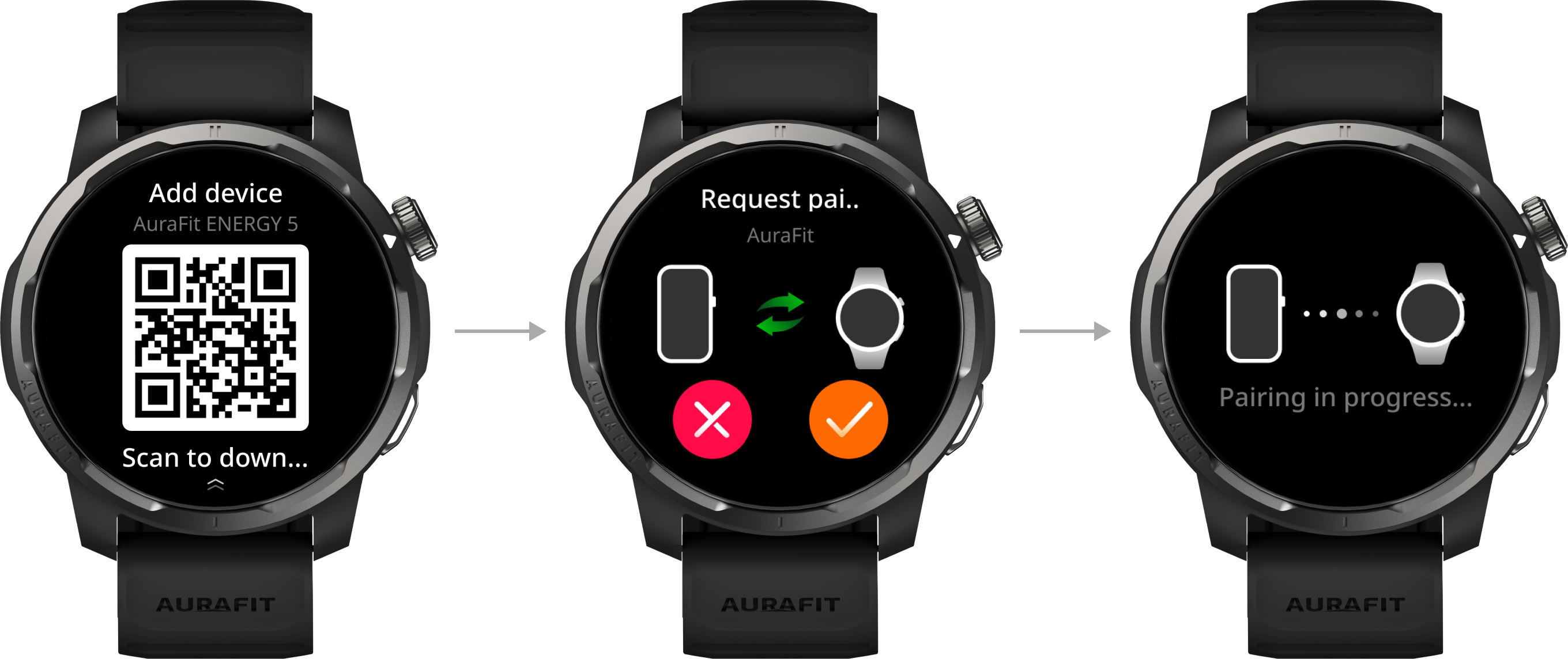
1、In the app, click "Add Device". The app will automatically scan for connectable devices. On the search page, click the target device name and follow the on-screen prompts to pair it.
2、When the "Pairing Request" pop-up appears on the watch, click "Confirm" and the watch will enter the pairing process;
*If the target watch is not in the list of connectable devices automatically scanned, you can click "Manual Scan to Pair," scan the QR code on the watch, and follow the prompts to complete the pairing process.
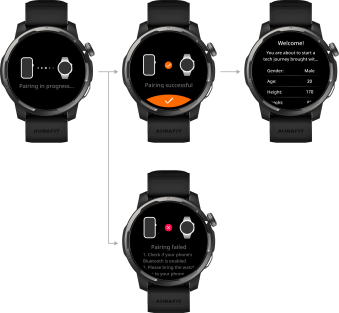
After successful pairing, the watch displays the "Welcome" page; if pairing fails, the watch displays "Pairing Failed" and returns to the boot screen.
二)、iOS users
1、In the app, click "Add Device". The app will automatically scan for connectable devices. On the search page, click the target device name and follow the on-screen prompts to pair it.
2、When the "Pairing Request" pop-up appears on the watch, click "Confirm" and the watch will enter the pairing process.
3、Some products require Bluetooth pairing with your phone. Please follow the on-screen instructions to connect via Bluetooth in the settings menu. When a pairing request appears on the product, tap the "Confirm" button on the screen and simultaneously confirm the pairing on your phone to complete the pairing process.
Gesture control screen
The new professional watch supports a variety of gestures, including full-screen tap, swipe up, swipe down, swipe left, swipe right, and long press; however, swipe left and swipe right are only supported in Card Style 2.
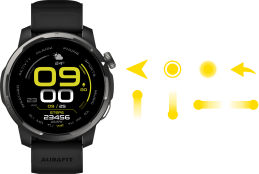
Screen introduction -- Theme switching
The new professional watch comes with three built-in themes (list, waterfall, and honeycomb), allowing you to choose the theme you prefer. There are also differences in the operating logic between the different themes.
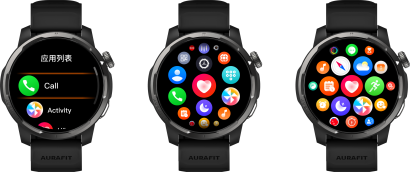
Screen Introduction -- Watch Face Interface
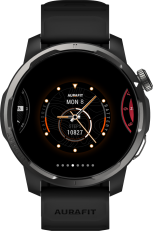
The new professional watch comes with a variety of watch faces, which you can install and change according to your preferences; long press on the watch face interface and swipe the screen to select your favorite watch face.
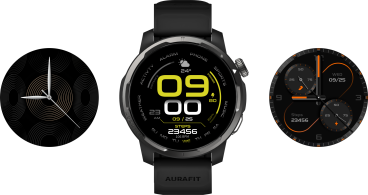
Screen Introduction -- Quick Menu
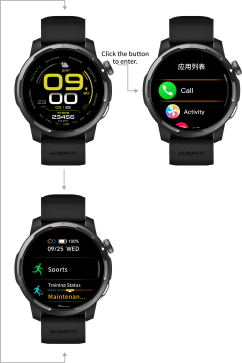
The new professional watch features a built-in quick menu, with different quick menus depending on the card style selected.
Sporty Style (Card Style 1): Swipe up and down on the watch face (or rotate the encoder) to enter the quick menu interface, where you can quickly access or view exercise, training status, VO2 max, training load, lactate threshold pace, lactate threshold power, recovery training, HRV status, all-day stamina, heart rate, sunrise and sunset times, altitude, air pressure, message notifications, and system settings.
Smart Style (Card Style 2): Swipe down on the screen (or rotate the encoder) on the watch face to enter the quick menu interface, where you can quickly activate functions such as drainage, Bluetooth headset, settings, always-on mode, brightness adjustment, silent mode, do not disturb mode, sleep mode, flashlight, alarm clock, raise to wake, volume adjustment, lock screen, calendar, compass, altitude and barometric pressure, find my phone, theater mode, etc.
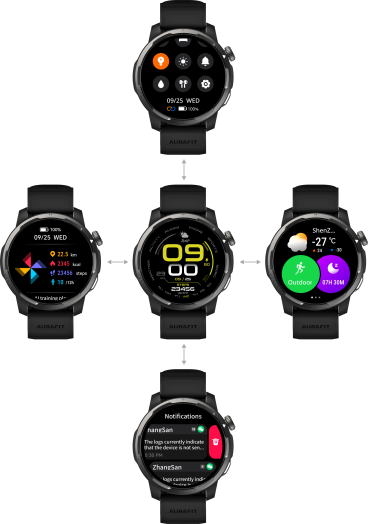
Screen introduction -- Message notification
Sporty Style (Card Style 1): Swipe up and down on the watch face (or scroll the encoder) to enter the quick menu. Click the message notification module to view messages from applications such as SMS, calendar, and social media.
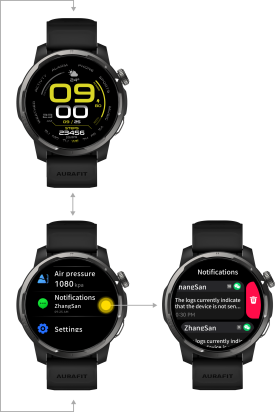
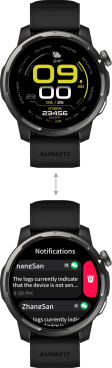
Smart Style (Card Style 2): Swipe down on the screen on the watch face to enter the message notification interface, where you can view messages from apps such as SMS, calendar, and social media.
Screen Introduction -- Function Cards
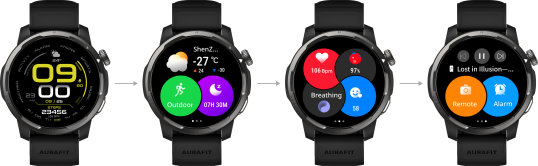
Function cards are only supported in Smart Style (Card Style 2). In this mode, you can quickly view frequently used function cards by swiping the screen to the left on the main watch face.
Screen Introduction -- Negative One Screen
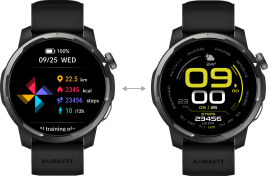
The negative one screen is only supported by Smart Style (Card Style 2). In this mode, swipe the screen to the right on the main dial to enter the negative one screen interface, where you can quickly view activity data, AI training plan, training status, VO2 max, training load, recovery training, HRV status, all-day physical strength, altitude, and air pressure.
Understanding button functions
| Key Definition | ||
|---|---|---|
| General scenarios | Sports Scene | |
| Encoder |
Single Click: Menu List Return to the watch face from any screen |
Single Click: Start/Pause/Function Selection |
|
Double Click: |
Double Click: |
|
|
Long press: On the lock screen, press and hold for 2 seconds to unlock. Outside the lock screen, press and hold for 3 seconds to bring up the power off options screen. |
Long press: On the exercise pause screen, press and hold for 2 seconds to end the exercise; |
|
|
Scroll: Global scrolling (including menu list, second-level and third-level settings interface; selected items and non-selectable items); |
Scroll: Exercise interface page turning and settings, pause page scrolling selection; |
|
| Down button |
Single Click: Return to the previous menu |
Single Click: During Exercise: Exercise Segmentation During Exercise: Triathlon Switching Events Exercise Completed: Return to Previous Menu |
|
Double Click: SOS emergency call |
||
Charge the watch
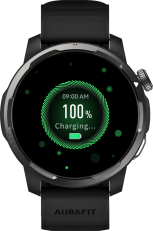
Align the charging contacts on the back of the watch with the metal contacts on the charging head until the watch screen displays "Charging Support". The watch will automatically power on after charging.
It transmits data such as music and track data to the watch.
1)、To transfer music to your watch: Use the included USB charging cable to connect your watch to your computer. On your computer, locate "My Computer," open "," then open the "Music" folder. Import the audio files you want to add into this folder. MP3 and WAV formats are supported.
2)、Import track data to your watch: You can create your own track map in the "My Routes" module of the QCY APP, or import a track map from your phone, and then sync the track map to your watch. Track map files imported from your phone support the .gpx format.
二、Health Management
Measuring heart rate
Both excessively high and low heart rates can negatively impact health. The new supports continuous 24/7 heart rate monitoring, measuring your heart rate in real time or as a single measurement. It allows you to view your resting heart rate, your daily activity heart rate zones, and supports setting heart rate alerts during exercise and viewing your recovery heart rate after exercise, keeping a close eye on your heart health.
Single heart rate measurement
Tap the Upper Button on the watch to enter the application list, select heart rate, and perform a single heart rate measurement.
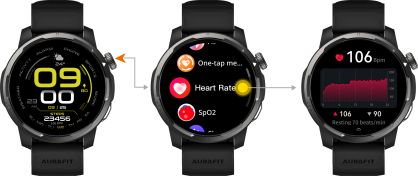
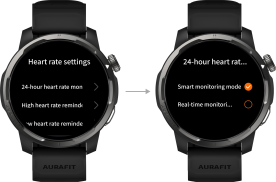
24-hour heart rate measurement 1) In the heart rate app interface, swipe down the page to enter the settings interface, select the "24-hour heart rate monitoring" button, and the watch will continuously measure your heart rate.
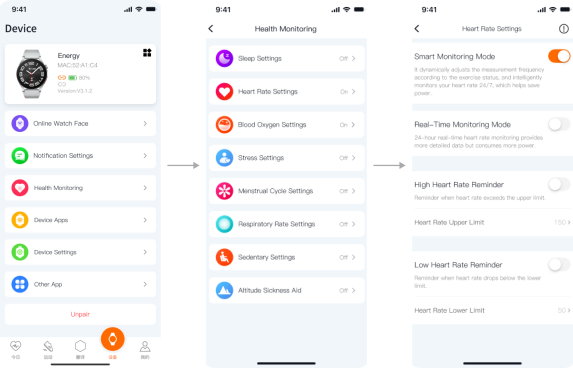
2)、Open the app, go to the heart rate settings page, turn on the [Smart Monitoring Mode] or [Real-time Monitoring Mode], and enable continuous heart rate measurement. The watch will continuously measure your heart rate.
Real-time heart rate monitoring during exercise
Once you start exercising, the watch will automatically monitor your heart rate and track your heartbeat in real time, helping you to better complete each workout.
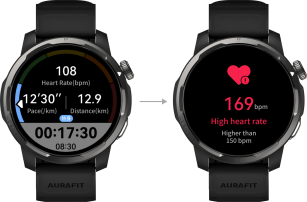
Resting heart rate measurement
Resting heart rate refers to the number of heartbeats per minute in a conscious, inactive, and quiet state. It is one of the important indicators for measuring heart health. The ideal resting heart rate is 50 to 80 beats per minute.
When we wear a watch, it automatically measures our resting heart rate.
When the watch does not meet the requirements for resting heart rate measurement, the resting heart rate display will be - -.
*Because the watch may not be automatically measuring resting heart rate at the optimal time, the resting heart rate may not be displayed temporarily or the measured value may deviate from the actual value.
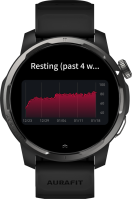
Alerts for excessively high or low heart rate
When we turn on the all-day heart rate monitoring [Smart Monitoring Mode] or [Real-time Monitoring Mode] and turn on the high or low heart rate alert switch, the watch will issue a high or low heart rate alert if it detects that the heart rate exceeds or falls below the set value for 10 minutes while inactive.
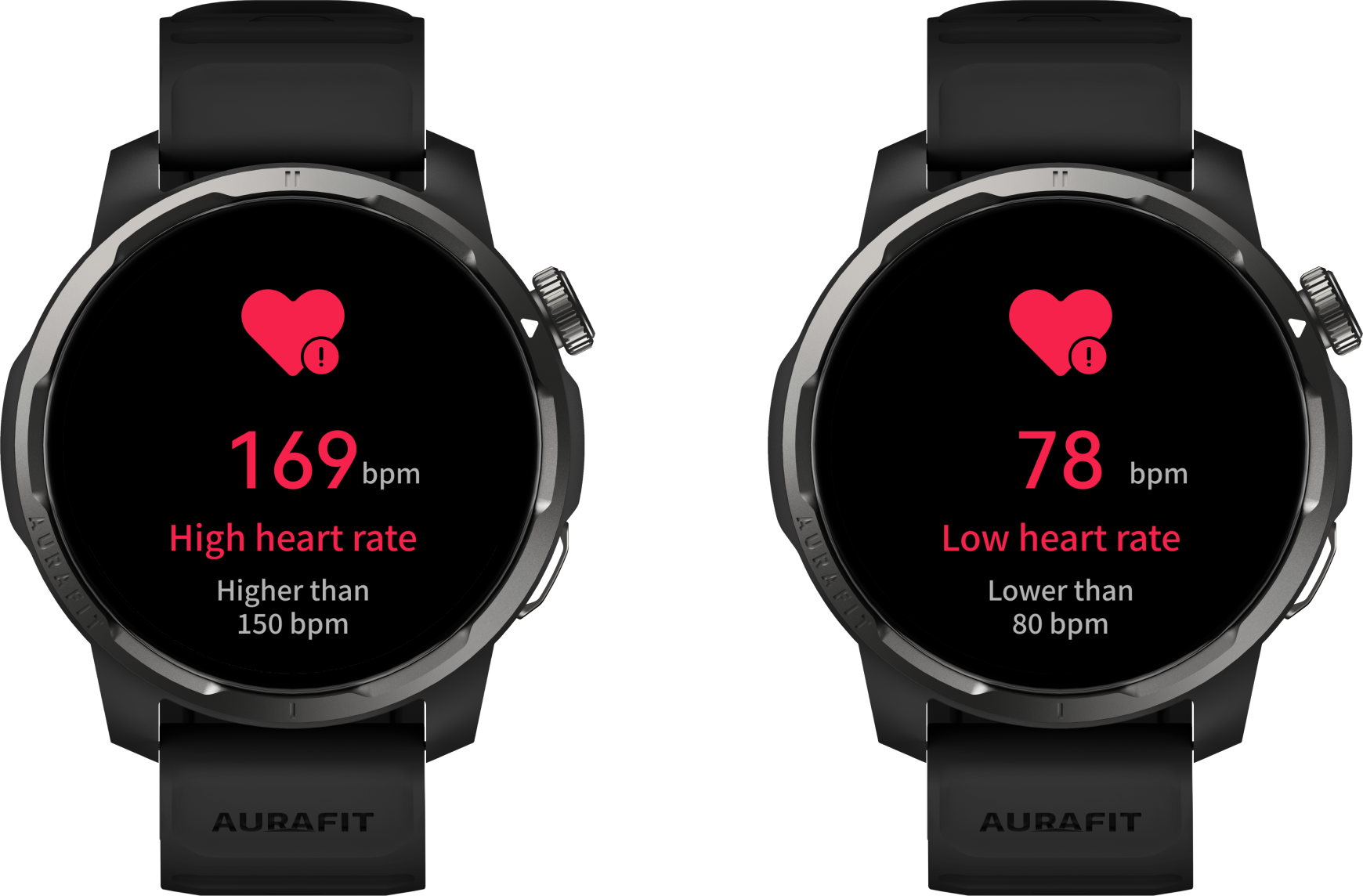
Exercise heart rate warning
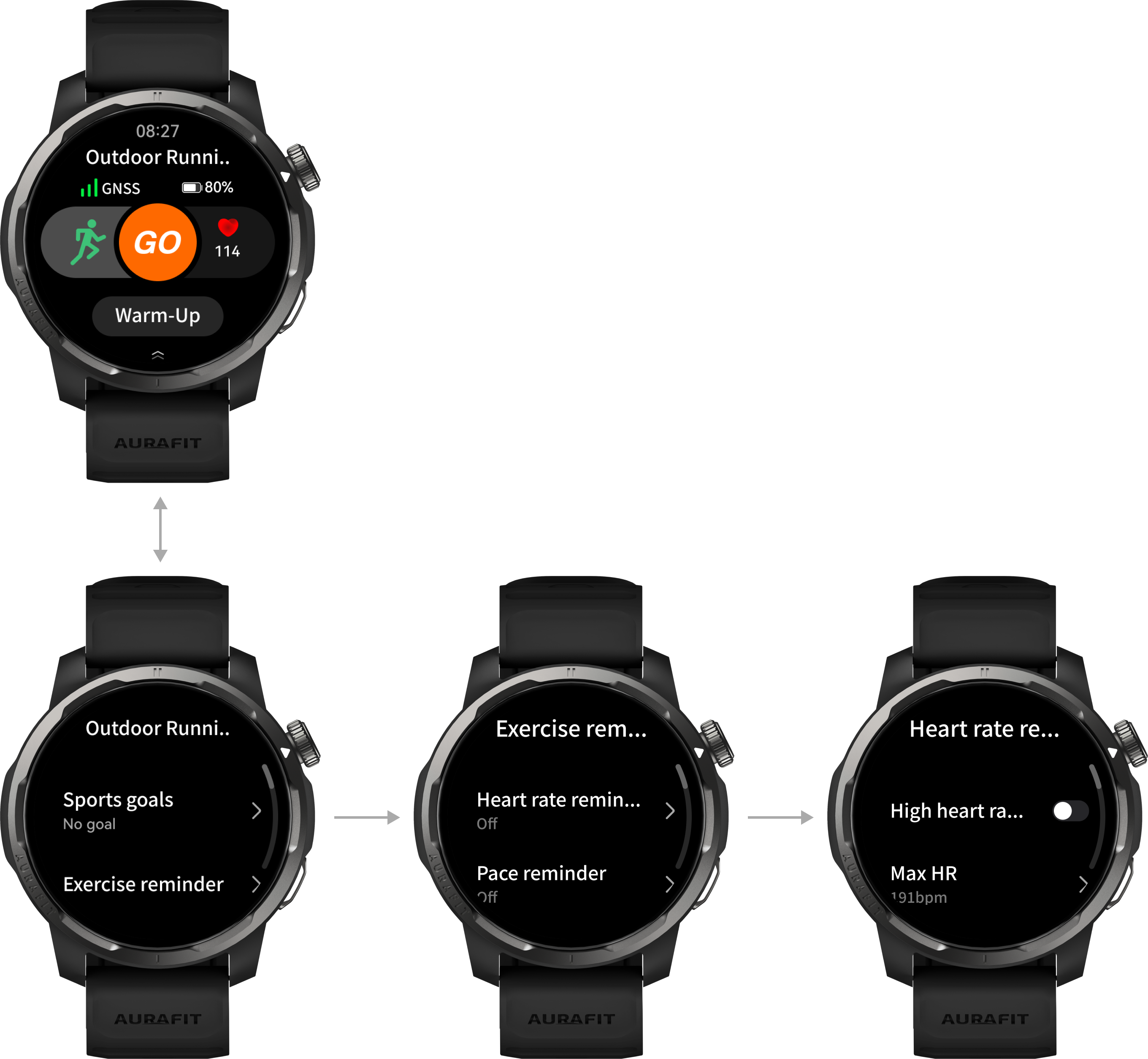
1)、On the exercise preparation page, swipe up to enter the exercise settings module, click on exercise reminders, and then click on heart rate reminders. You can set reminders for high heart rate and heart rate zones during exercise to help you exercise more safely and effectively.
2)、Once you start exercising, if your heart rate exceeds the upper limit of the set heart rate zone for more than 1 minute or remains below the lower limit of the heart rate zone for more than 3 minutes, the watch will issue a heart rate zone reminder.
Check heart rate recovery after exercise
Post-exercise recovery heart rate refers to the decrease in heart rate two minutes after exercise ends; a higher recovery heart rate indicates better cardiac endurance. We can check our recovery heart rate in our exercise log two minutes after we finish exercising.
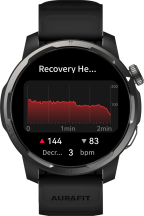
*Recovery heart rate cannot be viewed immediately after exercise or the value shown at the end of exercise is - -. Please check the recovery heart rate 2 minutes after exercise and do not remove the watch. Removing the watch will result in the inability to obtain the recovery heart rate value or inaccurate measurement results.
Blood oxygen measurement
Blood oxygen levels are a key indicator of a person’s overall health.
*Because the light reflection signal of blood oxygen is weak, to ensure measurement accuracy, please wear the watch correctly, keeping it at least one finger's width away from your wrist joint, and ensuring the watch back is firmly against your skin without any obstructions. If worn incorrectly, please follow the watch's instructions to wear it correctly before taking the measurement.
Single blood oxygen measurement
Tap the Upper Button on the watch to enter the application list, select blood oxygen saturation, tap measure, and keep your body still to measure your current blood oxygen saturation.

Continuous blood oxygen monitoring
1)、Swipe down on the main blood oxygen screen to enter the blood oxygen settings page, where you can turn the all-day blood oxygen monitoring switch on/off. When turned on, blood oxygen levels can be continuously monitored throughout the day when wearing the watch.
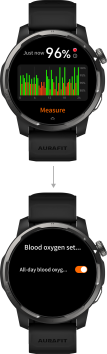
2)、When not asleep, if the blood oxygen saturation is below a certain value, the watch will issue a low blood oxygen alert.
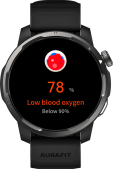
*The test data and results of this product are for reference only and should not be used as a basis for diagnosis and treatment. If you experience any discomfort, please seek professional medical help promptly.
Pressure testing
We monitor your stress levels and remind you to release stress in a timely manner to maintain your health.
Single pressure measurement
Select "Stress" from the watch app list, tap "Measure," and remain still to measure your current stress level. During stress monitoring, it is crucial to wear the watch correctly and remain still. Inaccurate stress assessments are not possible while in motion or with frequent wrist movements.

Continuous pressure measurement
The watch supports continuous automatic stress monitoring, dynamically tracking stress levels to help you understand your health status in real time. With automatic stress monitoring enabled, the watch will automatically measure and record stress data while your wrist remains stationary.
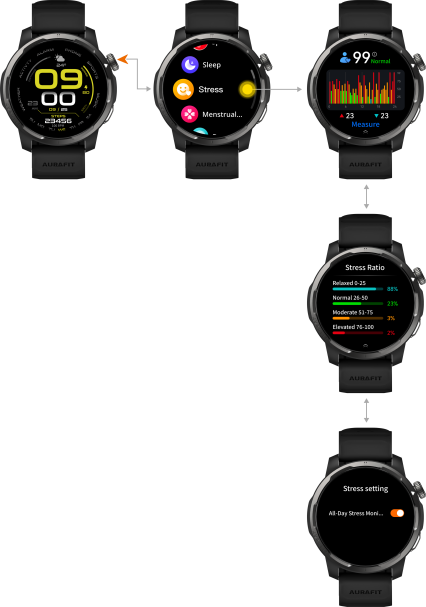
View stress data
allows you to view stress data on both the watch and the app.
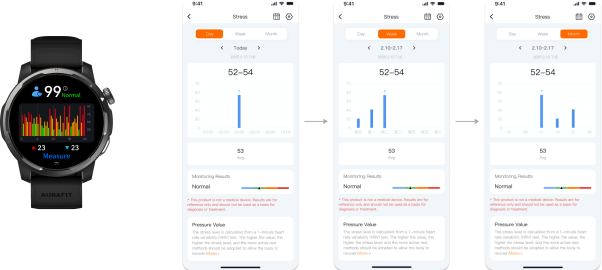
One-click health measurement
In the watch's app list, select "One-Click Measurement," click to measure, and keep your body still to measure your current heart rate, blood oxygen, stress, HRV, respiratory rate, and other health data to help you fully understand your health status.

Sleep monitoring
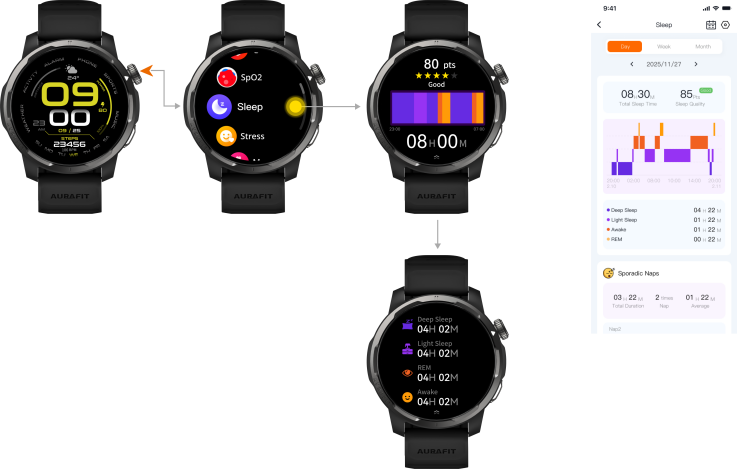
Sufficient sleep and healthy sleep are essential for maintaining good health. can monitor our sleep data, including data on the four stages of sleep at night, respiratory rate, obstructive sleep apnea-hypopnea syndrome (OSAHS), and naps, providing a comprehensive understanding of our sleep status and physical health.
Nighttime sleep
If you wear the watch to sleep correctly, it will automatically recognize the four phases of sleep: falling asleep, waking up, and sleep. You can view your detailed sleep data on both the watch and the app.
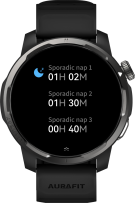
Sporadic naps
Sleep duration of less than 3 hours during the day will be displayed in the scattered naps. We can view our scattered nap data on the watch and the app to help us develop good napping habits.
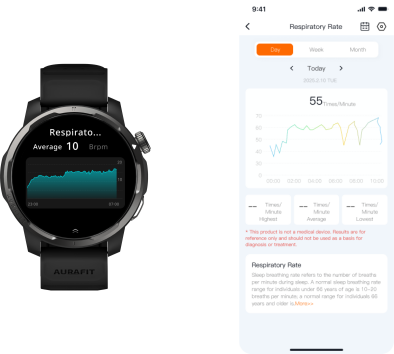
Sleep breathing rate
While the watch monitors our nighttime sleep, it also monitors our nighttime breathing rate. A good breathing rate indicates good health. We can view our nighttime breathing rate data on the watch and the app to help us understand our health status.
OSA Risk Assessment
Some of us may experience sleep apnea during sleep, but we are often unaware of it. This is detrimental to our health and energy levels. The QCY professional watch monitors sleep apnea during sleep tracking, helping us assess OSA risk and comprehensively evaluate our health status.
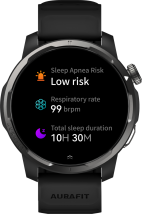
*1)If sleep lasts less than 20 minutes or if there are large movements of the body or wrist during sleep, the watch may not be able to detect sleep, resulting in data deviation.
*2)If you are not very active after waking up, the watch may not detect that you are awake. You can press the button on the watch to turn on the screen and exit sleep mode.
*3)The monitoring data in the watch will be updated daily at 24:00 (00:00). Historical data will be stored in the watch and can be stored for up to 7 days. Please sync it to the APP in time to avoid data loss due to untimely synchronization.
All day's physical strength
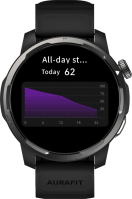
Daily stamina reflects our energy level throughout the day; the higher the remaining stamina index, the more energetic we are. Higher stamina allows us to complete more challenging tasks. In the watch app list, click "Activity Records" to view various activity data, including remaining stamina and daily stamina data.
HRV status
HRV status reflects our current physical condition.
By clicking "HRV Status" in the watch app list, we can view data such as our baseline HRV value, the average HRV value from last night's sleep, and the average HRV value over the past 7 days. This helps us understand our current physical condition and plan our activities accordingly.
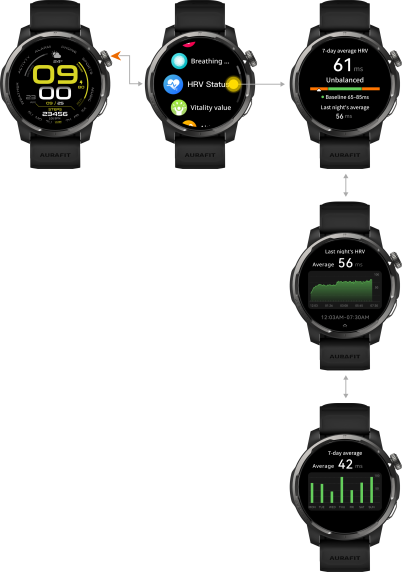
*1)Our HRV baseline value can only be calculated after wearing the device continuously for more than 3 weeks.
*2)HRV data is generated along with sleep data. Please wear your watch correctly while sleeping to obtain more accurate values.
Breathing training
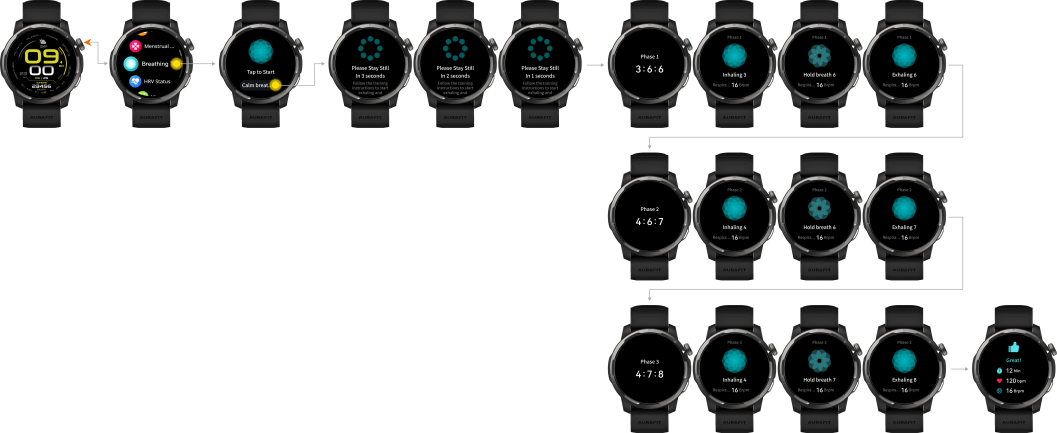
Breathing exercises can help us regulate our body's stress, sleep preparation, and maintain peace, which has significant benefits for our long-term health.
Open the app list, select breathing training, choose the corresponding training mode, and follow the rhythm of your watch to train in order to prepare for sleep, concentrate, reduce stress, or regain a state of calm and balance.
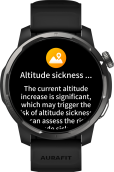
Altitude sickness assistance
Altitude sickness aids can help us quickly assess the risk of altitude sickness in high-altitude areas, enabling us to react quickly.
1)Open the application list, select Altitude Sickness Assistance, and complete the risk assessment according to the application prompts;

2)When the watch detects an altitude of 2,500 meters or above, it automatically monitors changes in our blood oxygen and physical strength and issues alerts to help us quickly cope with altitude sickness.
三、Professional sports
Sports settings
supports workout settings. You can access the settings page by swiping up on the workout preparation page to configure the corresponding settings.
Maximum heart rate and heart rate zone settings
On the exercise preparation page, swipe up to enter the exercise settings module, click on exercise reminders, and then click on heart rate reminders. You can set the maximum heart rate and heart rate zone settings during exercise to help you exercise more safely and effectively.
Start exercising
supports a wide range of sports modes, with over 150 modes to let you enjoy your workout time.
Start the movement
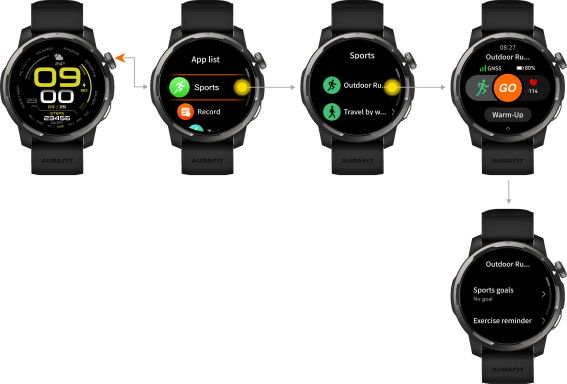
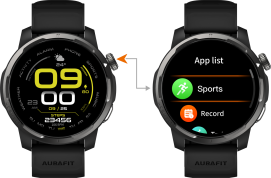
1、In the watch app category, select Sports or tap the button on the watch to quickly enter sports mode;
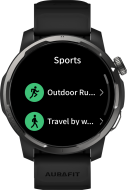
2、Click the corresponding exercise mode icon in the exercise list;
3、Click the start icon to begin exercising (for outdoor exercise, it is recommended to wait for GPS positioning to succeed before starting).
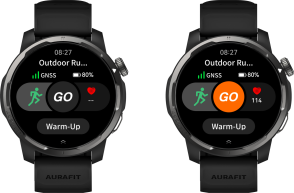
4、During exercise, you can pause/continue the exercise, lock/unlock the screen, adjust the volume, and perform other operations.
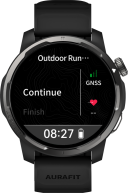
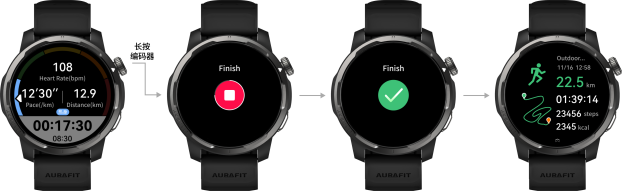
5、Press and hold the encoder button to end the motion, or tap the encoder button and select "End" on the pause page.
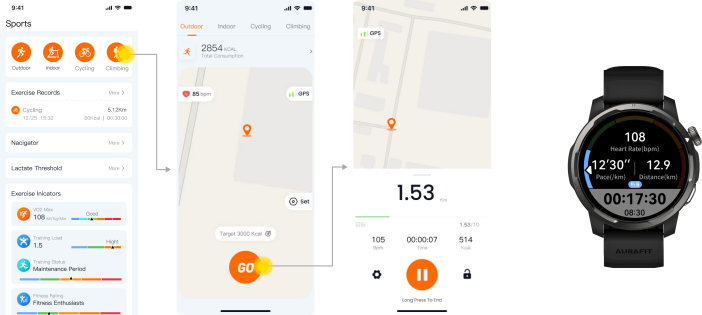
6、Start exercising on the app
To start a workout on the app, you need to wear both your watch and phone, and ensure that they are properly connected.
1)、Select your preferred type of exercise in the app and click the start button to begin exercising.
2)、Once you start exercising, the watch will automatically activate the corresponding exercise mode and display the exercise data.
Custom sports list
We can customize and add sports types based on our preferences, making it convenient and quick to use the sports types we need.
Add exercise
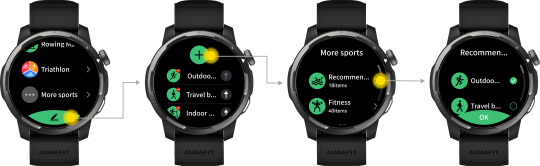
Remove movement
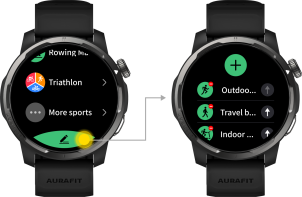
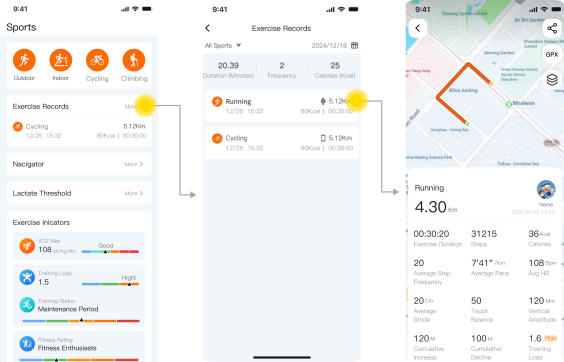
View exercise records and exercise track
View workout records
In the app, on the sports homepage, click on sports records, and then click on the sports record you want to view to see detailed sports data;
View daily activity records
1、View daily activity records on the watch
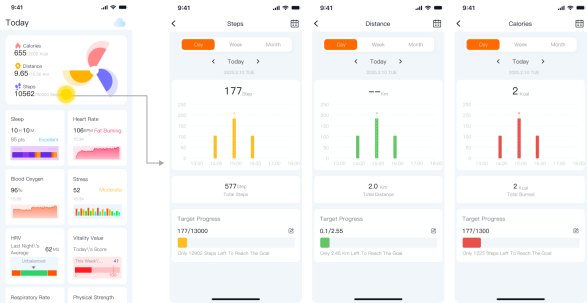
In the watch app list, select "Today's Activities," tap the app, and swipe the screen to view data such as steps, distance, energy consumption, moderate to high intensity activity, and total stamina throughout the day.
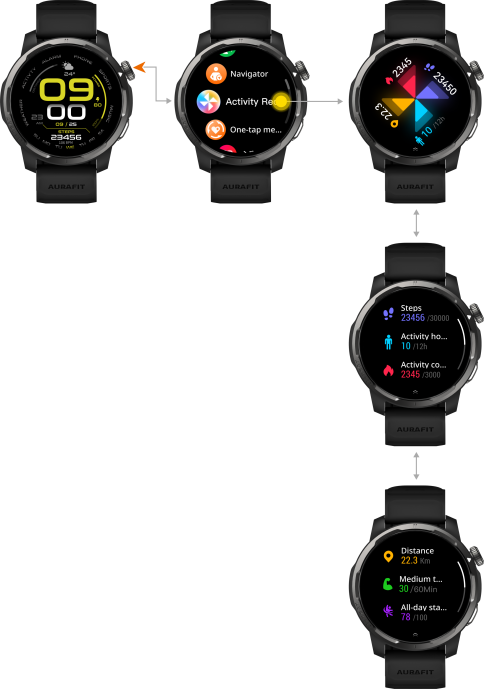
The Three Rings of Health in Activity Records:
1)、Steps: Displays the number of steps you completed that day. The default target value is 8,000 steps, which you can change in the app.
2)、Distance: Displays the distance you completed that day. The default distance target is 5km, and you can change this target setting in the app.
3)、Energy Consumption: Displays your daily energy expenditure. The default energy expenditure target is 300kcal, which you can change in the app.
2、View on the APP
The watch and the app are connected normally, and you can view detailed records on the fitness page in the app;
Motion trajectory import/export
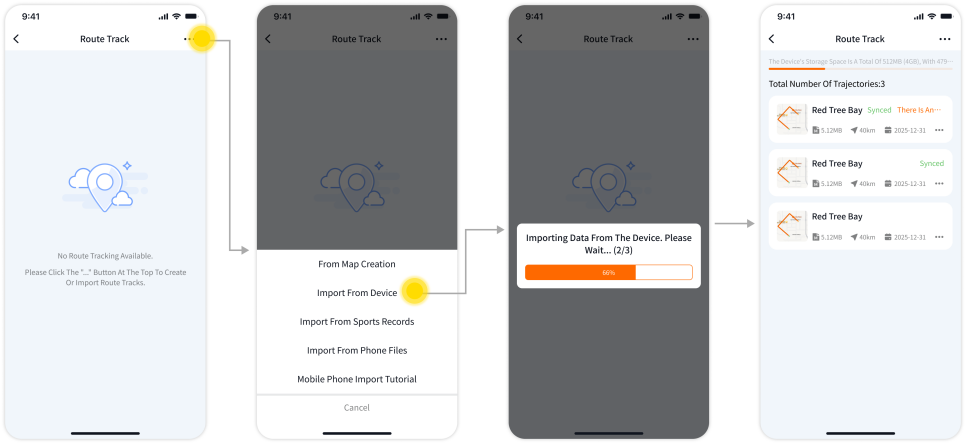
Importing motion trajectory
In the app's sports module - route track, you can choose to import sports tracks from the device, from your exercise records, or from your phone, and you can also sync the imported track map to your watch.
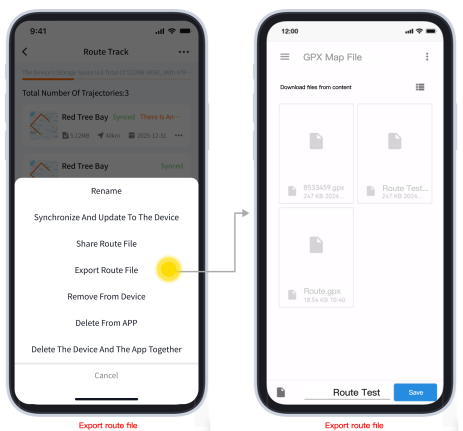
Exporting Motion Trajectory
In the app's sports module, under route track, you can choose to export the route file and save it to your phone.
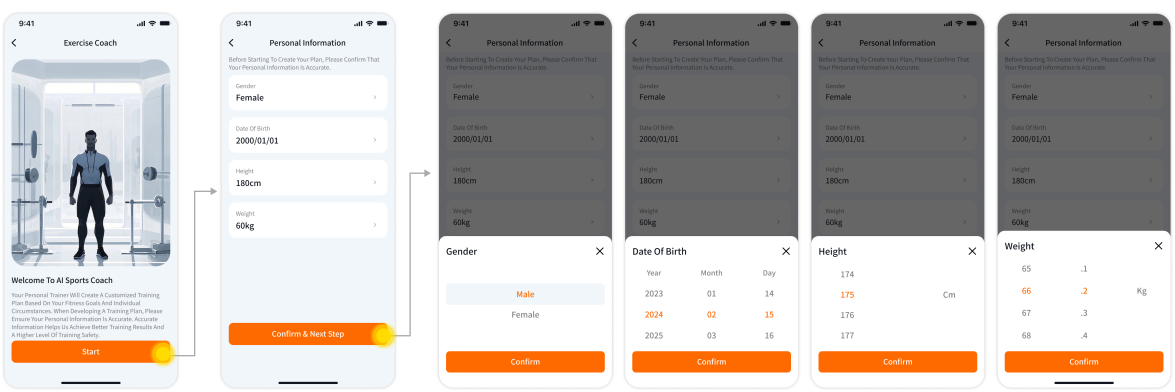
AI Coach
1、Before creating a plan, you can confirm and modify your personal information in the app.
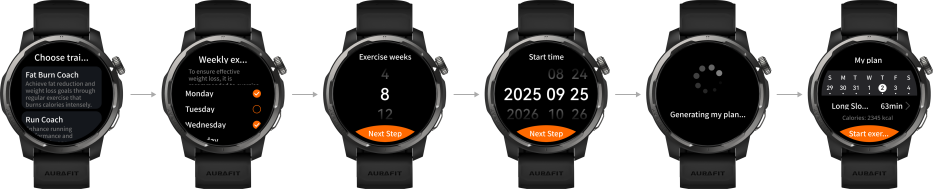
2、There are three types of fitness coaches to choose from: a weight loss coach, a running strength and conditioning coach, and a marathon coach. The steps and differences for choosing each type of coach are as follows:
1)、Weight loss coach: Through regular exercise, burn calories like crazy to achieve the goal of reducing fat and losing weight. 2)、Running Strength and Conditioning Coach: Improve running and cardiovascular fitness through planned running training.

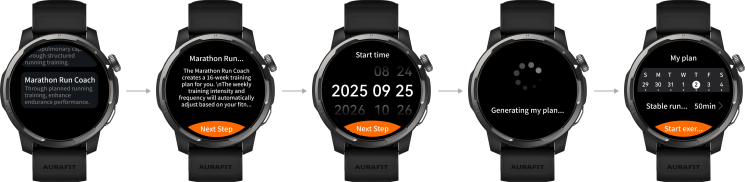
3)、Marathon coach: Improve endurance performance through planned running training.
四、Offline Maps
Download map via APP
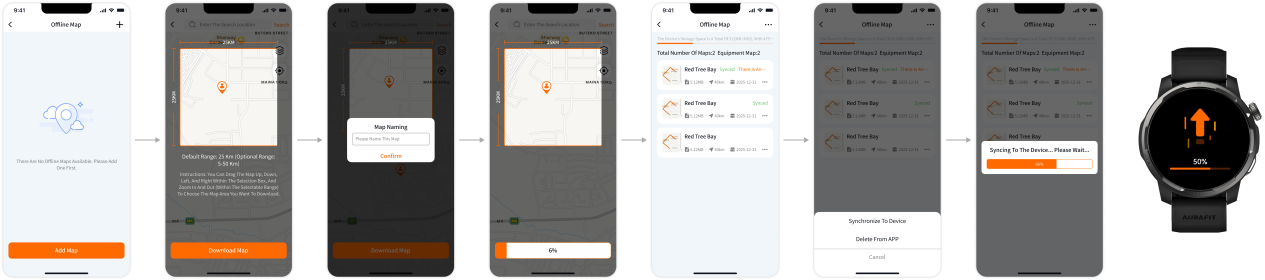
's offline map function supports downloading and updating maps via the app. You can access the offline map function by clicking on the activity module, then click "Add Map" to select an area within a 5-25 km radius, package it into an offline map, and sync it to your watch.
Download maps via computer
supports importing map files via computer. You can connect your computer and watch with a charging cable to import map files into the watch and view the map on the watch.
View map
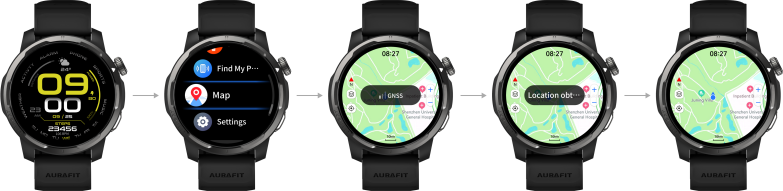
On the watch, tap the map function to view map information of your current location.
Track recording
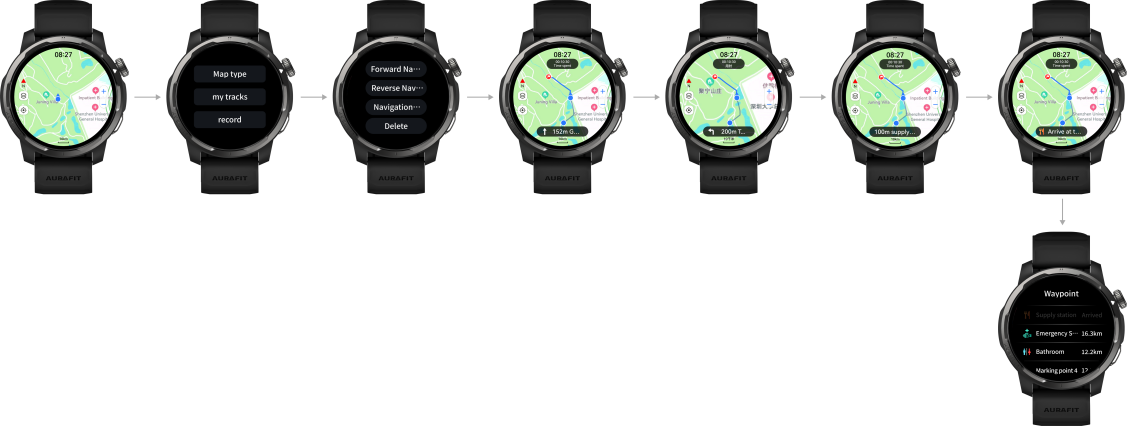
In the map function, click "More" and then select the "Record" function. This function allows you to record the tracks you want to record. During the recording process, you can briefly press the "Below Button" to add markers. You can also categorize and rename these markers within the app.

Track navigation
You can select a track in "My Tracks" to navigate forward or backward. During navigation, you can move according to the arrow indicators. If the track contains markers, marker information will be displayed during navigation. You can also swipe up on the navigation interface to access the marker viewing page and check the marker information.
五、Convenient Life
Message Notifications
The watch can synchronize message notifications with your phone's status bar and alert you via screen vibration.
Message Notification Settings
Open the app, select Settings - Message Notifications, and you can set which calls, SMS messages, and app messages you want to be notified of.
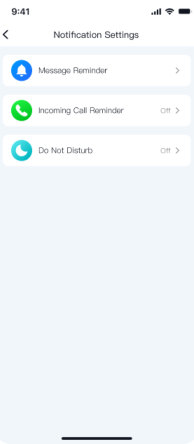
Note: When we turn on Do Not Disturb mode or Theater mode, the watch will only receive messages and will not vibrate or light up to alert us. We can view messages in the message menu.
Bluetooth calling
Making phone calls
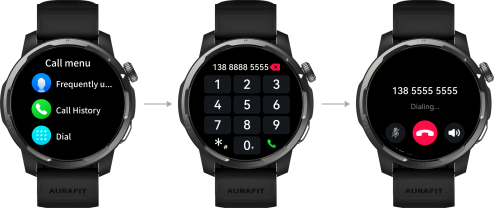
When the watch and phone are properly connected via Bluetooth, you can make phone calls directly from the watch.
Bluetooth call answering
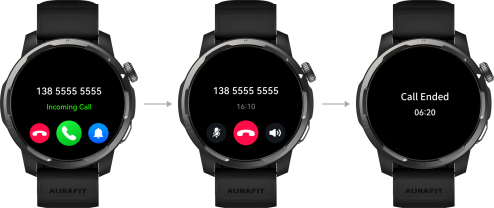
When the watch and phone are connected via Bluetooth, you can answer calls directly on the watch.
Setting up contacts
Before making a call using a contact, we need to add and edit contact information in the app;
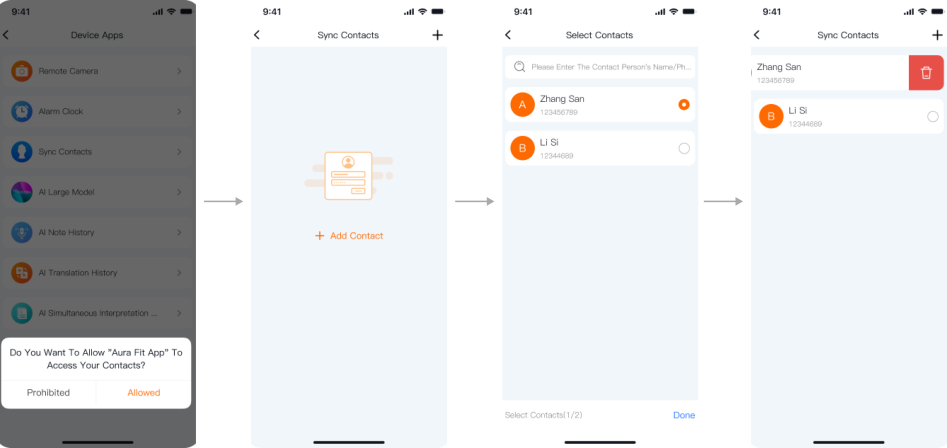
SOS Emergency Contact
In a crisis, we can make an emergency call by double-clicking the button on the bottom of the watch. We can set up emergency contacts after importing our watch contacts.
Note: To use emergency contacts, ensure that the watch and phone are properly connected via Bluetooth. It is recommended to enable background exercise in the app. This feature will not be available if no emergency contacts are set up.
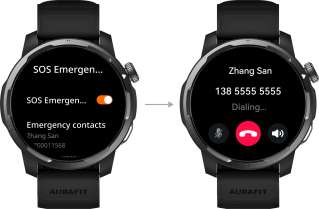
Music
Music Control
The watch can control the playback, pause, song switching, and volume adjustment of music on your phone.
Select "Music" from the watch's app list, then select "Music Control" to control music playback on your phone.
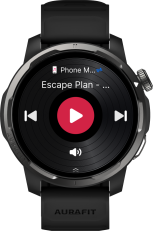
Note: When using the watch's music control function, ensure the watch and phone are properly connected via Bluetooth and the app is running in the background. Compatibility with third-party music may vary depending on actual user experience and the brand and model of the phone, due to differences in system compatibility.
Music Download
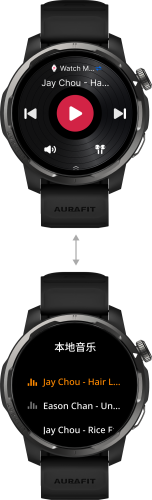
The watch supports local playback. You can use a charging cable to connect to a computer and import songs to the watch for playback.
Music Playback
The watch supports local playback, allowing you to play locally stored music files without connecting to your phone.
Remote photography
1、The watch and phone are connected via Bluetooth normally and the app is running in the background.
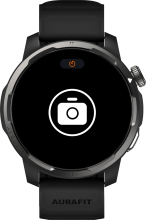
2、Tap "Remote Camera" in the watch app list to control your phone's camera to take photos.
Alarm settings
Set an alarm on your watch
1、To add an alarm, tap the alarm clock in the app list and select the add button.
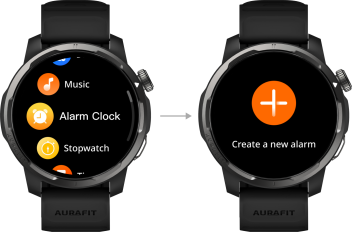
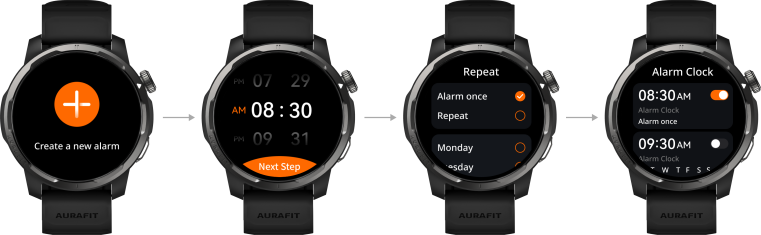
2、Simply follow the application prompts to complete the alarm settings by setting the time and repetition cycle.
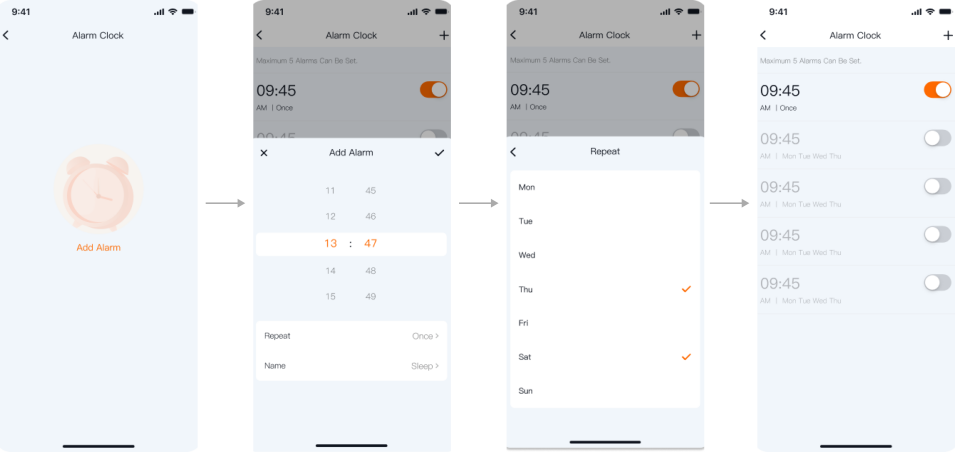
Set an alarm in the app
Note:
A、 A maximum of 5 alarms can be set;
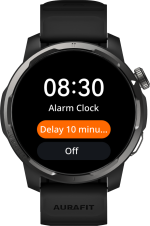
B、 When an alarm is triggered, tap the "Alarm Delay" button on the screen, or tap the side button or swipe right on the screen to delay the reminder (10-minute delay). Tap the "Close" button to turn off the alarm. If no action is taken, the alarm will be delayed for 6 times before turning off.
Check the weather
Ensure that the phone and watch are properly connected via Bluetooth, that the phone has a stable network connection and location access enabled, and that the watch can display the weather.

Compass
The compass displays the direction the watch is pointing, clearly helping us understand our location and quickly identify directions in unfamiliar environments such as wilderness exploration and travel.
Select the compass in the watch app, follow the prompts to complete the calibration, and you can then use the compass.
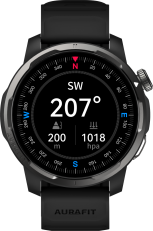
Note: During calibration, please avoid products with magnetic field interference (such as mobile phones, tablets, computers, etc.) to prevent affecting calibration accuracy.
Stopwatch
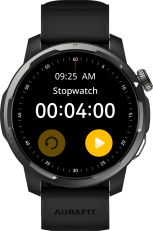
The watch supports full-time and time-segment stopwatch timing, helping us to accurately and conveniently time events such as sports and competitions.
Flashlight
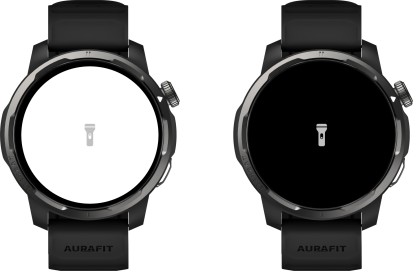
Select the flashlight app in the watch app, and the screen brightness will be turned up to the maximum. Simply tap the screen to turn the flashlight on/off.
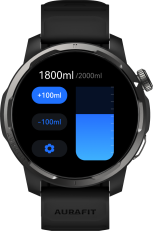
Drinking water reminder
After enabling the water drinking reminder, the device will remind us at the set time. We can set our water drinking goals, drinking time, and the amount of water to drink each time.
Recording Memo
Select Voice Memos in the watch app, tap the record button to start recording.
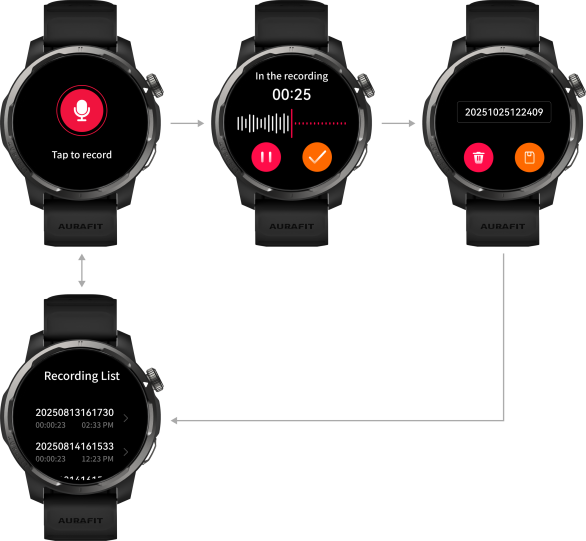
Note: When recording, if you exit the application using the button function, the recording will continue in the background; during a Bluetooth call, the recording will be interrupted, and you will need to re-enter the application to record.
Find your phone with your watch
Select the Find My Phone app from the watch app list. The Find My Phone animation will play on the watch screen, and your phone will ring. Tap the watch screen or exit the Find My Phone app to stop the phone from ringing.
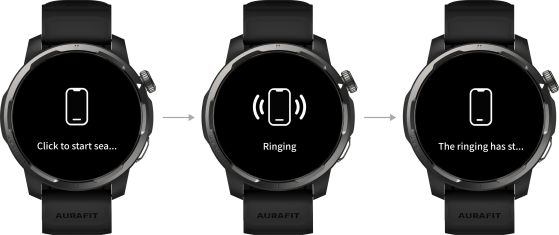
Note: To find your phone, the watch and phone must be properly connected, the phone must be within Bluetooth range, and the app must be running in the background.
Find your watch using your phone
When the watch and the mobile app are connected normally, we can quickly find the watch through the app.
1、Open the app and go to the device settings page;
2、Tap to find the watch; the watch will vibrate and ring. Tap the watch button to turn off the notification.
六、Personalization settings
Replace watch strap
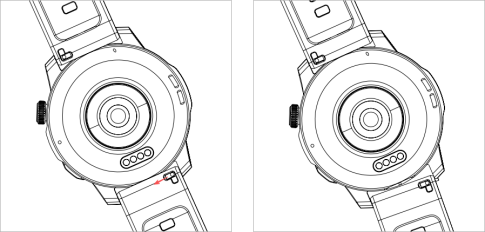
To disassemble, refer to the following method; to install the new strap, use the reverse method. The watch supports a standard 22mm width strap.
Set time and language
1、Once the watch is connected and synced with the phone, the phone's system language and time will automatically sync to the watch, eliminating the need to set the time and language on the watch.
2、If the app changes the language, the watch will update the language synchronously after it connects to the phone.
3、The specific supported languages are subject to the display on the watch.
Change the dial
The watch supports over a hundred different watch faces.
1、Change the default watch face;
On the watch face page, long press the watch face to enter the watch face selection interface, and swipe left or right to change the default watch face.
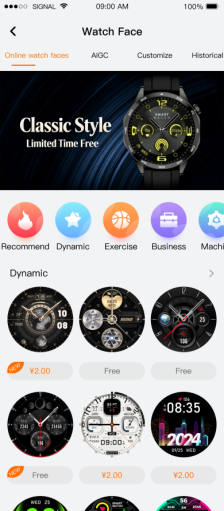
2、Install and update watch faces via the app;
On the device settings page, select the watch face market, download and install your favorite watch faces.
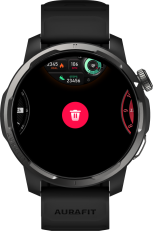
3、Delete the watch face;
On the watch face page, long press the watch face, swipe up, and click the delete button to delete the installed online watch face.
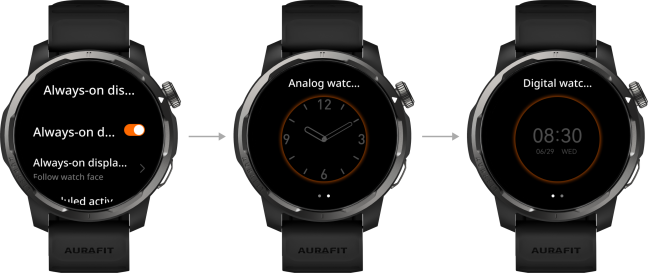
4、Set the always-on watch face;
The always-on watch face is the watch face that remains lit when the watch is in standby mode; it is disabled by default.
To set a watch face, go to Settings > Watch Face & Home > Always-on Watch Face in the watch app list, swipe the screen to select the desired always-on watch face style, and complete the setup.
Note: Custom watch faces are not supported when the screen is off. Enabling the screen-off watch face will significantly shorten battery life.
Set screen display duration and brightness
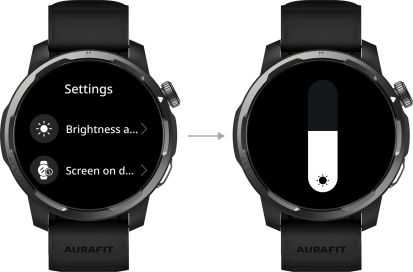
In the watch app list, select Settings - Display & Brightness to adjust the screen brightness and brightness duration.
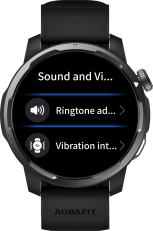
Set the volume, vibration intensity, and mode.
Set the volume, vibration intensity, and mode.
Drain
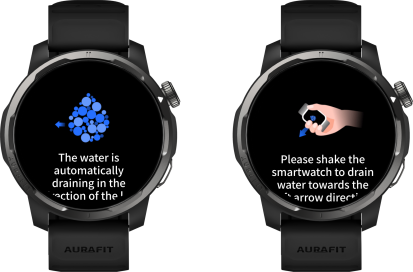
1、Access the quick menu on the watch face, tap the [Drain] button on the screen to enter drainage mode, and follow the on-screen prompts to complete the drainage process.
2、After swimming, the watch will automatically enter drainage mode.
Lock screen and unlock
Energy watches place great emphasis on protecting our privacy. We can set a lock screen password and enable the always-on lock screen function. The watch will automatically lock when the screen is off and can only be unlocked by entering the password.
1、Set lock screen password
In the watch app list, select Settings - Preferences - Password - Enable Password, and follow the on-screen prompts to complete the setup. After enabling the password, the watch will automatically lock when the screen is off.
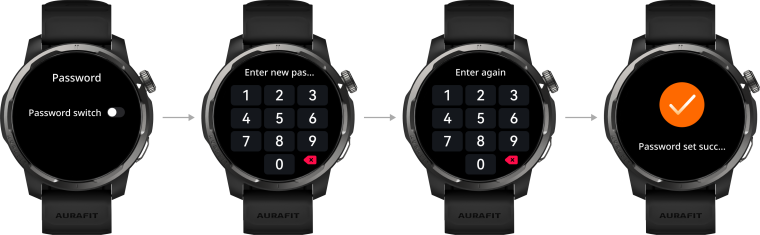
Note: Please keep your password confidential. If you forget your password, you will need to restore factory settings.
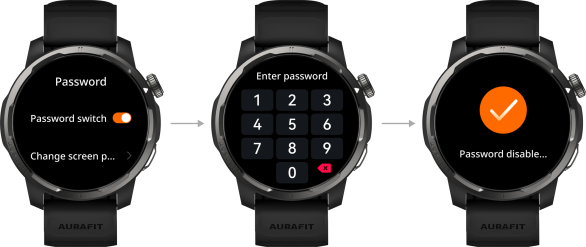
2、Turn off lock screen password
In the watch app list, select Settings - Preferences - Password - Turn off Password, and follow the on-screen instructions to complete the setup.
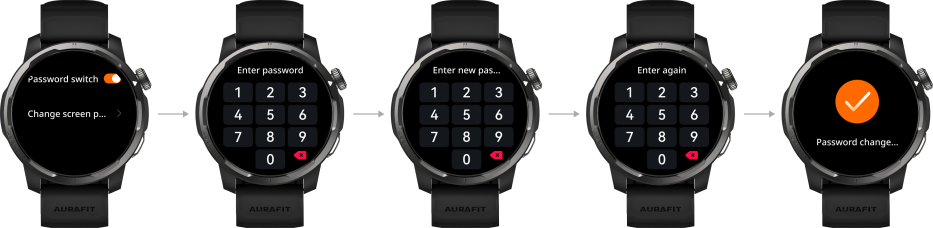
3、Change lock screen password
In the watch app list, select Settings - Preferences - Off-wrist lock screen - Change off-wrist lock screen, and follow the on-screen prompts to complete the settings.
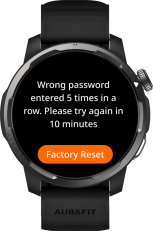
3、Forgot your lock screen password
If you forget your password, you will need to restore the watch to factory settings to operate it. After restoring factory settings, all data on the watch will be lost, so please keep your password safe.
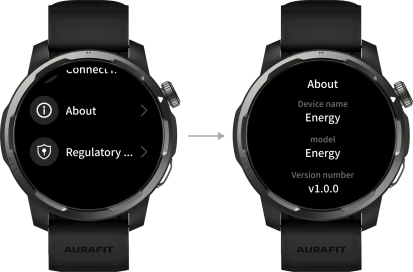
View device information
In the list of watch apps, select Settings - About to view the watch's device information.
Version upgrade
1、Upgrade via APP
On the app settings page, click Firmware Update. The phone will detect the watch's version update information. Please upgrade according to the prompts.
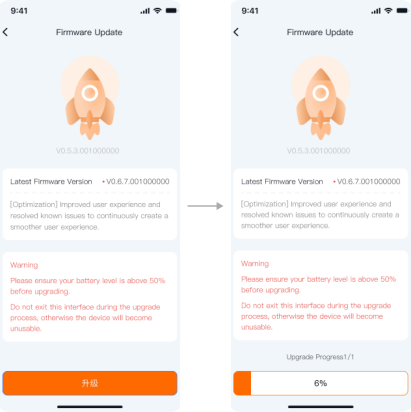
Note: To ensure a successful upgrade, it is recommended that the watch have a battery level greater than 20% before upgrading. Upgrading will not be possible if the battery level is below 20%.
Cleaning and maintenance
Please keep the product and watch strap clean and dry to extend its lifespan. You can clean the product using alcohol or a soft cloth.